HP printers go offline for one of three reasons: they never connected properly in the first place, the Wi-Fi password changed, or they're trying to connect to a band they don't support. All three are fixable in under 10 minutes.
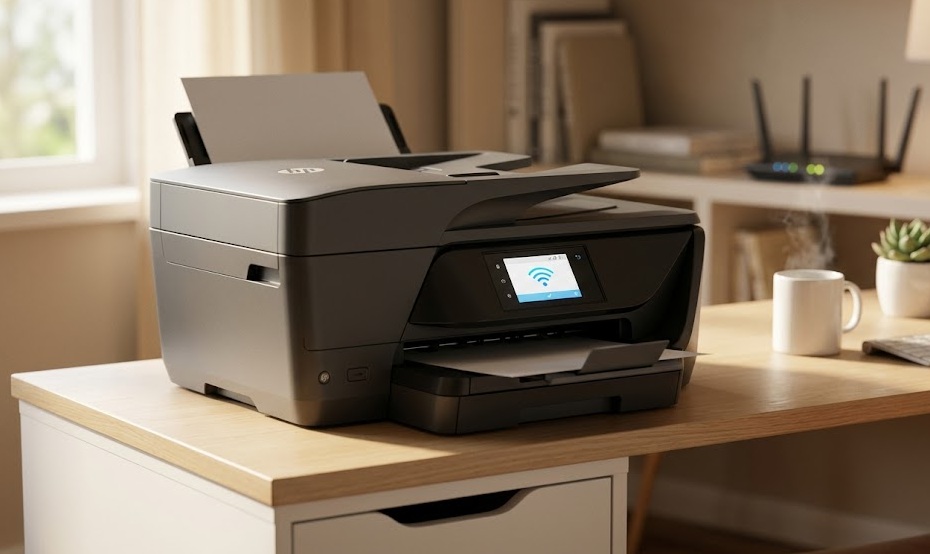
Three methods to connect an HP printer to Wi-Fi: (1) HP Smart app — easiest, guided step-by-step on your phone. (2) Wireless Setup Wizard — on the printer touchscreen, go to Settings → Network → Wireless Setup Wizard. (3) WPS button — press WPS on your router, then the wireless button on the printer within 2 minutes. Most HP printers only support 2.4GHz — if your router uses 5GHz only, that's why it won't connect.
Download on your phone or PC. Guided setup walks you through everything. Works for new and existing printers.
EasiestBuilt into the printer's touchscreen. You select your network and type the password directly on the printer.
ReliableOne-button connection — no password typing. Requires physical access to your router. Only 2 minutes.
Fastest (when available)HP Deskjet, Envy, and most OfficeJet models connect only to 2.4GHz Wi-Fi. If your router broadcasts only a 5GHz network — or uses only one SSID for both bands — the printer will fail to connect with no obvious error. Log into your router admin panel and confirm your 2.4GHz band is enabled before troubleshooting anything else.
The HP Smart app is the most reliable method for first-time setup. It handles the Wi-Fi configuration automatically and installs the printer driver at the same time.
Available free on iPhone, Android, Windows, and Mac. Search "HP Smart" in the App Store, Google Play, or Microsoft Store.
On most HP printers: press and hold the Wireless button for 3 seconds until the wireless light blinks. This enables HP's Wi-Fi setup mode. On printers with a touchscreen, the app detects the printer automatically.
Make sure your phone is connected to the same Wi-Fi network you want the printer on. The app scans and finds the printer in setup mode.
The app walks through network selection and password entry. It sends the credentials to the printer over a temporary direct connection. The printer connects to your Wi-Fi and the app confirms success.
In the HP Smart app, tap the printer name → Print → select a test page. If it prints, setup is complete. If it fails, see the troubleshooting section below.
The HP Smart app isn't just for new setup. If your printer lost its Wi-Fi connection — after a router password change or moving — open the app, tap your printer, go to Printer Settings → Network, and run the wireless setup again with the new credentials.
This method works on any HP printer with a touchscreen control panel. No phone app required — you enter the Wi-Fi password directly on the printer.
During initial setup, place the printer within 6 feet of the router. You can move it later — this just ensures a strong signal for the configuration process.
Tap the gear icon or swipe down from the top of the touchscreen. Look for Network or Wireless in the menu.
The printer scans for available networks. This takes 10–30 seconds. A list of SSIDs appears.
Tap your Wi-Fi network name (SSID). Use the on-screen keyboard to enter your Wi-Fi password. The password is case-sensitive.
The printer attempts to connect. A success message appears, or the wireless light stops blinking and stays solid blue. A solid wireless light = connected. Print a test page to confirm.
On HP Deskjet and basic Envy models without a full touchscreen, access wireless setup differently: press the Wireless button and the Information button (i) simultaneously and hold for 3 seconds. This puts the printer in Wireless Setup mode so the HP Smart app can find and configure it.
WPS (Wi-Fi Protected Setup) connects the printer to your router with no password entry at all. Both devices negotiate the connection using a secure exchange triggered by physical button presses.
You need: physical access to your router (the WPS button is on the back or side), and a printer with a WPS-capable wireless button.
Look for a button labeled WPS on your router. If yours doesn't have one, or if your router has WPS disabled for security, use Method 1 or 2 instead.
Press and hold the WPS button on the router for 3 seconds. The WPS indicator light starts flashing — this opens a 2-minute connection window.
On the printer, press and hold the Wireless button for 3 seconds. The wireless light starts blinking rapidly.
The printer and router negotiate and connect. The wireless light on the printer stops blinking and turns solid blue within 60–90 seconds. Done — no password entry needed.
This is the most common reason HP printers go offline. The printer remembers the old password. It keeps trying to reconnect using credentials that no longer work.
The fix is to run the Wireless Setup Wizard again with the new password. Here's the fastest path:
| Printer Type | Steps to Reconnect |
|---|---|
| Touchscreen model | Settings → Network → Wireless Setup Wizard → select network → enter new password → Save |
| No-touchscreen model | Open HP Smart app → tap your printer → Printer Settings → Network → Wireless Setup |
| Any model (app method) | HP Smart → tap printer → Update Wi-Fi Settings → select network → enter new password |
| WPS method | Press WPS on router → press Wireless button on printer within 2 min — no password needed |
If you changed both the Wi-Fi network name and password at the same time, the printer sees a completely new network. Run the Wireless Setup Wizard from scratch — the printer won't recognize the new SSID as being "the same network." Alternatively, restore the printer's network settings to default: Settings → Network → Restore Network Settings, then set up fresh.
| Problem | Likely Cause | Fix |
|---|---|---|
| Printer can't find the network | Router only broadcasts 5GHz; printer supports only 2.4GHz | Log into router admin panel — enable 2.4GHz band and ensure it has its own SSID or band steering is active |
| Network appears but won't connect | Wrong password entered, or password changed recently | Double-check password (case-sensitive); run Wireless Setup Wizard again with correct credentials |
| Printer connects but goes offline again | IP address conflict or DHCP issue; printer gets a new IP each time | Assign the printer a static IP in the router's DHCP reservation settings; use the printer's current IP address as the reservation |
| Wireless light blinks continuously | Printer is in setup mode or connection attempt is failing | Cancel current setup, print a network config page to see what's happening, then restart the wizard |
| Printer says "Connected" but won't print | Printer and computer are on different networks or subnets | Confirm your computer and printer are on the same Wi-Fi network; check that no VPN is active on your computer |
| WPS setup fails | WPS disabled on router, or 2-minute window expired | Check router settings to confirm WPS is enabled; retry pressing both buttons within 30 seconds of each other |
This page shows exactly what network the printer is connected to, the IP address, signal strength, and connection status. It's the fastest way to diagnose connection issues.
If nothing works, reset the printer's network settings to factory default: Settings → Network → Restore Network Settings. This clears all stored Wi-Fi credentials without affecting your print history or driver settings. Then run a fresh Wireless Setup Wizard. This resolves 80% of persistent connection issues.
Got the printer connected? Now optimize your router settings and secure your Wi-Fi network.
Browse All Guides →