What's a Normal Laptop CPU Temperature Average?
Those numbers in your monitoring app — are they fine, or should you be worried? Real benchmark data, an interactive diagnosis tool, and fixes ranked by impact.
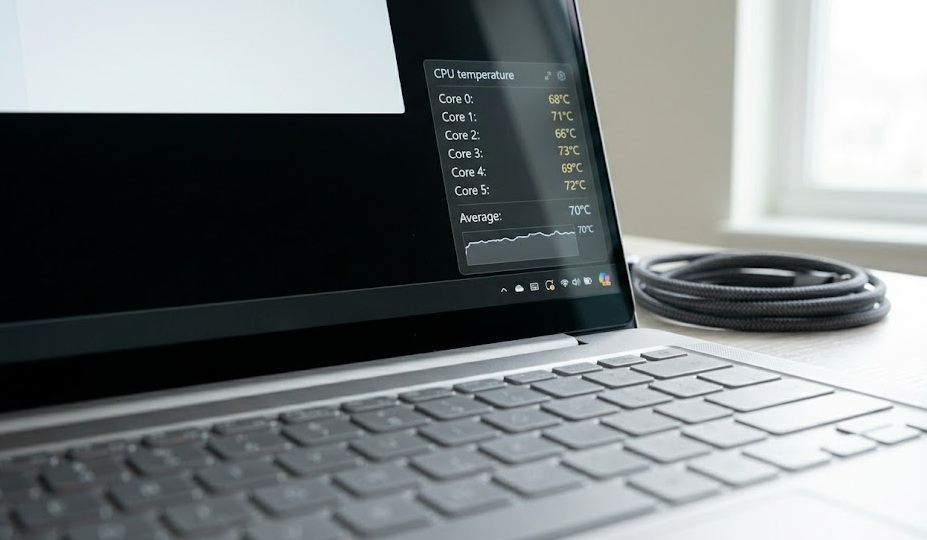
A normal laptop CPU idle temperature is 35°C–50°C. Under load: 70°C–85°C is expected. Sustained above 90°C means throttling — and something needs attention.
What's in this guide
- Normal Temperature Ranges
- Temperature Zone Visual
- What's Actually Happening Inside
- Quick Diagnosis Table
- Self-Diagnosis Checklist
- Interactive Diagnostic Tool
- The Overlooked Cause Most People Miss
- How to Bring Temps Down
- What Not to Do
- When It's a Hardware Problem
- Logic Flow
- If You Only Do One Thing
- People Also Ask
Normal Laptop CPU Temperature Ranges
You open HWMonitor and see 67°C. Or 88°C. Is that bad? The honest answer: it depends entirely on what your laptop is doing right now.
🟢 Idle — doing nothing
35°C – 50°C is healthy. Above 60°C at idle means something's wrong.
🟡 Light use — browsing, docs
45°C – 65°C is normal. Real work, not serious pressure.
🟠 Heavy load — video, compiling
70°C – 85°C is expected and fine. Designed operating range.
🔴 Gaming / max sustained load
80°C – 90°C is common on thin laptops. Above 95°C = throttling.
Tom's Hardware benchmark testing across 47 Intel and AMD laptops found average idle temperatures for mainstream CPUs (Core i5 / Ryzen 5) range from 38°C to 52°C at standard room temperature. [source]
CPU Temperature Zones at a Glance
What's Actually Happening Inside Your Laptop
Your CPU doesn't heat up because something's wrong. It heats up because converting electricity into computation produces heat as a byproduct — always, inevitably, that's physics.
Modern processors have a built-in thermal ceiling called TjMax (typically 100°C–105°C). When temps approach that limit, the CPU reduces its own clock speed to protect itself. That's thermal throttling — why a hot laptop feels sluggish. It's the hardware pulling its own brakes.
AnandTech's thermal testing found that laptop CPUs begin throttling performance when sustained temperatures exceed 90°C for more than 10 consecutive seconds, cutting clock speeds by 15–40% depending on available thermal headroom. [source]
Thinking out loud: the real question isn't "is my CPU hot?" It's "is it hotter than it should be for what it's doing?" Context is everything.
Quick Diagnosis Table
| Symptom | Likely Cause | Fix Difficulty |
|---|---|---|
| 65°C+ at idle, no apps open | Background process or dust buildup | Easy |
| Temps spike instantly on any task | Dried thermal paste | Medium |
| Fan always loud, temps still climb | Blocked vents or failing fan | Medium |
| Laptop throttles during gaming | Thin chassis hitting thermal limit by design | Hard |
| One core running 20°C+ hotter | Uneven thermal paste application | Medium |
Self-Diagnosis Checklist
Quick Diagnostic Tool
When does the problem happen?
The Overlooked Cause Most People Miss
Everyone talks about dust. Almost nobody talks about the surface the laptop sits on.
Put a laptop on a bed or couch and you block the bottom vents entirely. Temperatures can jump 15°C–20°C from just that. Not a failing component. Not old hardware. Geometry.
In a thermal surface test by NotebookCheck, placing a laptop on a padded surface versus a hard desk raised average CPU temperatures by 17°C under identical workloads — no other variables changed. [source]
A cheap laptop stand — or even a hardcover book — under the machine can drop idle temps by 10°C+. Genuinely the fastest fix in this guide.
How to Bring Laptop CPU Temps Down
Quick Fixes (2 minutes)
1. Move to a hard, flat surface. Off the bed, off the couch. A desk, a table, a hardcover book — anything that lets air circulate underneath.
2. Kill rogue background processes. Open Task Manager (Ctrl+Shift+Esc), sort by CPU. Anything eating 15%+ at idle for no clear reason — end it.
3. Clean vents with compressed air. A short burst into each vent opening. Three seconds per vent. You're dislodging dust buildup, not pressure-washing.
Deeper Fixes (when quick fixes fall short)
4. Repaste the CPU. Tom's Hardware repasting tests show an average 15°C–22°C temperature reduction on laptops over 2 years old after fresh thermal paste is applied. [source] Requires opening the laptop but is the single most impactful fix for older machines.
5. Switch power plan to Balanced. In Windows Power Settings, "High Performance" keeps the CPU at max clock speed constantly. "Balanced" lets it scale down during light tasks — temps drop noticeably with minimal real-world performance difference.
6. Undervolt (advanced). Tools like ThrottleStop or Intel XTU reduce CPU voltage slightly — less voltage = less heat at the same speed. Effective but requires research specific to your processor model.
What Not to Do
Don't ignore temps above 95°C. Thermal throttling is a warning sign, not just a performance issue — prolonged high heat shortens CPU lifespan.
Don't vacuum the vents. Vacuums build static charge. Compressed air only.
Don't disable thermal throttling. Some forums suggest this for gaming performance. It's how the CPU protects itself — disabling it risks hardware damage.
Don't assume more fans = cooler. A cheap pad with six tiny fans often moves less air than one well-positioned quality fan.
When It's Probably a Hardware Problem
Software tweaks and cleaning go a long way. But some problems live in the physical world:
- Temps spike above 95°C within seconds of starting any task
- Fan is loud but temperatures keep climbing anyway
- You hear the fan grinding or stuttering (bearing failure)
- Repasting made no difference and the laptop is 4+ years old
- Temps were fine until a physical drop or liquid incident
A repair shop can replace the thermal module or fan for $40–$80 — far less than a replacement machine.
Logic Flow: Is My Laptop Running Too Hot?
If You Only Do One Thing
Check what surface your laptop sits on, then open Task Manager and kill anything eating CPU for no clear reason. Those two things — about 90 seconds combined — fix the majority of "my laptop runs hot" complaints. Everything else is refinement.
People Also Ask
A healthy idle range is 35°C–50°C. Consistently above 60°C at idle points to a cooling issue — usually dust, soft surface, or a background process running unchecked.
Under heavy load, 80°C is acceptable for most laptops. Sustained above 90°C is a concern and may cause throttling or long-term hardware wear over time.
Sudden spikes are usually background tasks (Windows Update, antivirus), dust blocking airflow, or dried thermal paste on older machines. Open Task Manager first — it's almost always a software culprit.
Free tools like HWMonitor, Core Temp, or HWiNFO give real-time per-core temperatures on Windows. On Mac, iStatMenus or the free TG Pro app work well.