Failing RAM rarely crashes loudly. It creeps. It borrows a symptom from a software bug, another from a virus scan gone wrong. Here's how to see through the disguise — and confirm what's actually failing.
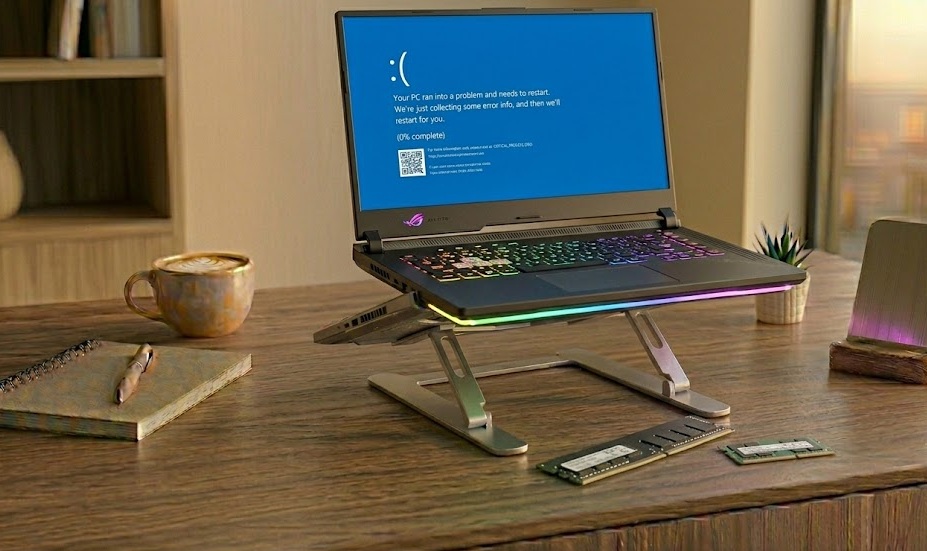
The most common RAM failing symptoms are: random Blue Screens of Death (BSOD), crashes that happen under different workloads with no pattern, corrupted files on a healthy drive, the OS reporting less installed RAM than is physically present, visual glitches, and failure to boot with beep codes at startup. Symptoms worsen gradually as more memory cells degrade. Confirm with mdsched (Windows Memory Diagnostic) or MemTest86 before replacing anything.
Think of RAM as a whiteboard your computer uses to jot down working notes — active apps, open files, data mid-transfer. Now imagine certain sections of that whiteboard start smearing. Notes written to those sections come back garbled. Sometimes they come back as something else entirely. Sometimes they don't come back at all.
That's what failing RAM does. Individual memory cells degrade — from heat, age, manufacturing defects, power surges, or physical damage — and can no longer hold data reliably. The system keeps trying to use those cells. The results look like software bugs, driver conflicts, or a corrupted OS. Most people spend weeks chasing the wrong problem.
Many RAM symptoms are shared by other hardware failures — a dying hard drive, overheating CPU, corrupted OS, or even malware can produce identical results. Don't buy replacement RAM based on symptoms alone. Run a memory test first. It's free and takes under an hour.
Not every symptom means the same thing. Here's what each one means, and how worried you should be right now.
The system's POST (Power-On Self-Test) ran, checked the RAM, and found nothing usable. Beep patterns at startup are the BIOS's way of shouting what went wrong. On Mac: three beeps = RAM error.
Windows crashes and displays a stop code when it detects corrupted memory data. If BSOD happens repeatedly across different tasks — not just one app — RAM is a primary suspect. Look for memory-related stop codes.
Documents that won't open, photos that look scrambled, applications that won't launch. RAM holds data during file writes — a faulty cell corrupts the data before it reaches the drive. A healthy drive with corrupted files often points here.
Check Settings → System → About (Windows) or Apple Menu → About This Mac. If the number is lower than what's physically in the slots, the OS has excluded modules it detected as unreliable.
Crashes that happen across different apps, different workloads, different times of day — without any consistent trigger. Software problems crash in specific contexts. RAM problems crash everywhere, randomly. The randomness is the tell.
Strange shapes, wrong colors, repeated patterns on screen — especially during gaming or video. Often blamed on GPU, but the graphics card relies on system RAM too. If glitches appear even in BIOS, where the GPU barely touches, RAM is more likely the culprit.
When RAM cells fail, Windows compensates by aggressively pushing data to virtual memory (the page file on disk). Everything slows dramatically. CPU and disk usage look normal in Task Manager, but the machine feels like it's moving through concrete.
Programs that simply vanish mid-use. No crash report, no error dialog — just gone. The OS terminated the app because it couldn't service its memory requests reliably.
Intermittent frame drops that don't track with GPU or CPU load. RAM instability during heavy memory operations causes stutters that look like a CPU bottleneck — until you test memory and find errors at those exact load levels.
Windows BSODs include a stop code — a label identifying what triggered the crash. Not all BSODs mean bad RAM, but these stop codes frequently do.
If the screen rebooted too fast to read: open Event Viewer → Windows Logs → System. Look for Critical events timestamped around when the crash happened. The stop code appears in the event details. Alternatively, search for %SystemRoot%\Minidump in File Explorer — Windows saves crash dump files there.
Laptops show the same RAM failing symptoms as desktops, but the context makes them harder to read. Your laptop is always warm, always moving around, and usually can't be easily opened for hardware swaps. Here's what to watch for specifically.
If your laptop runs smoothly for email and browsing but crashes during video editing, gaming, or large file transfers — heat-stressed failing RAM is a strong candidate. Laptop RAM sits physically close to heat sources and degrades faster when thermally stressed.
Starts fast, slows down after 30–60 minutes under load. This is thermal throttling of failing memory — cells that work when cool start misbehaving as the board heats up. Shutdown and wait 30 minutes; if it starts fast again, heat is the accelerator.
Updates push more memory activity than usual. Laptop RAM that was borderline-functional suddenly starts failing under the extra load of a large update. If BSOD appears during or immediately after a Windows update cycle, RAM stress is often to blame — not the update itself.
Open Task Manager → Performance → Memory. If 60–80%+ memory is consumed at idle with only basic apps open, Windows may be working around bad RAM cells by avoiding them — effectively reducing usable memory below what's installed.
Visual glitches that appear specifically after the laptop wakes from sleep or hibernation — strange colors, pixel patterns, scrambled sections. Sleep and resume require the system to reload data from RAM. Failing cells produce visible corruption at that exact moment.
Exactly 45 minutes. Always at the same point. That's a thermal pattern — the board reaches a temperature threshold where compromised RAM cells stop functioning reliably. Consistent timing means temperature, not random failure. Run HWMonitor and watch temps during the session.
On most laptops made after 2019 — and virtually all MacBooks, thin-and-light Windows laptops, and ultrabooks — the RAM is soldered directly to the motherboard. You cannot remove or replace individual sticks. If MemTest86 confirms RAM failure on a soldered-RAM laptop, you're looking at a motherboard replacement or a new machine. Test before assuming; replacement is expensive. If your laptop still has removable RAM (check the spec sheet), the reseat and single-stick testing steps from the desktop section apply directly.
The process differs slightly from desktop because you often can't physically access the RAM. Here's the order of operations:
| Step | What to Do | What It Tells You |
|---|---|---|
| 1 | Check reported RAM: Settings → System → About | If lower than spec, RAM failure already confirmed at OS level |
| 2 | Run Windows Memory Diagnostic (mdsched) |
Quick pass — catches obvious errors, not exhaustive |
| 3 | Run MemTest86 from bootable USB | Thorough — runs outside Windows, most reliable confirmation |
| 4 | Monitor temperature with HWMonitor during MemTest86 | Reveals if failures correlate with heat (thermal RAM failure) |
| 5 | If RAM is removable: reseat, then test one stick at a time | Isolates which module is bad |
| 6 | If soldered: contact manufacturer or authorized repair | Motherboard replacement may be required |
On Mac, Apple Diagnostics runs a basic memory test built-in. Shut down, then hold D while powering on (Intel Macs) or hold the power button until "Loading startup options" appears, then press Command + D (Apple Silicon). If it reports a memory issue, take it straight to Apple — MacBook RAM is soldered and non-user-replaceable.
Symptoms suggest. Tests confirm. Here's the order that makes sense.
Power down, unplug, open the case. Remove and firmly re-insert each RAM stick. Clean the gold contacts with a dry lint-free cloth if dusty. Reseat into the correct slots per your motherboard manual. A loose connection or oxidized contacts produces every symptom on this list without the RAM itself being faulty — and fixing it costs nothing.
Press Win + R, type mdsched, press Enter. Choose "Restart now and check for problems." The tool runs before Windows loads and displays results on login. It's a decent first pass — quick, built-in, catches obvious errors. But it's not thorough enough to rule out RAM failure definitively.
Download from memtest86.com. Write to a USB drive, boot from it, run the full test. A complete pass takes 1–8 hours depending on RAM capacity. Any errors at all = confirmed bad RAM. Zero errors after a full pass = RAM is likely fine. This test runs entirely outside Windows, which means it sees the raw hardware without OS interference.
If MemTest86 finds errors and you have multiple sticks: remove all but one, run MemTest86, swap to the next stick, repeat. When you find the stick that throws errors, you've found the culprit. This also reveals whether the problem is the RAM module or the motherboard slot itself.
| Tool | Time | Thoroughness | Best For |
|---|---|---|---|
| Reseat RAM | 5 min | Fixes ~20% of cases | Always first |
| Windows Memory Diagnostic | 15–30 min | Basic | Quick first check |
| MemTest86 | 1–8 hours | Thorough | Definitive confirmation |
| One stick at a time | Varies | Identifies specific module | After errors confirmed |
| Apple Diagnostics | 10–15 min | Basic (Mac) | Mac laptops first pass |
Describe what's happening and we'll tell you how likely RAM is the cause.
Select your most prominent symptom and when it started