How to Recover Data from a Laptop
Whether you accidentally deleted files, formatted the wrong drive, or your laptop had a crash — laptop data recovery is possible in most cases. Here's where to start.
On Windows: right-click the folder that contained the file → 'Restore previous versions' — this is free and works without downloading anything. On Mac: check Time Machine first. If those fail, download Recuva (Windows) or PhotoRec (Mac/Windows) for a deep scan.
What's in this guide
What's Actually Happening
When you delete a file on a laptop, it doesn't disappear — the operating system just marks that storage space as available. On an HDD, the data physically remains until something else is written there. On an SSD, TRIM can clear blocks faster, but built-in backup tools often capture files before this happens.
The key insight: most laptops have at least one free recovery path built into the OS. Previous Versions on Windows and Time Machine on Mac work silently in the background, even if you never set them up deliberately.
Microsoft's documentation confirms that Volume Shadow Copy (Previous Versions) is enabled by default for the system drive on Windows 10 and 11, creating automatic restore points during updates and significant system events without any user configuration. [source]
StorageReview's data recovery testing found that Recuva successfully recovered 73% of test files from Windows HDDs in a standard deletion scenario — comparable to paid tools costing $40–$80. [source]
At a Glance
Quick Diagnosis Table
| Symptom | Likely Cause | Fix Difficulty |
|---|---|---|
| File in Recycle Bin / Trash | Not deleted yet — just staged | Easy |
| File deleted, Previous Versions shows it | Shadow copy captured it | Easy |
| File deleted from HDD, no backup | Data intact until overwritten | Medium |
| File deleted from SSD, no backup | TRIM may have cleared blocks | Medium-Hard |
| Laptop won't boot | OS failure — drive may be fine | Medium |
Self-Diagnosis Checklist
Quick Diagnostic Tool
What operating system is the laptop running?
The Overlooked Cause Most People Miss
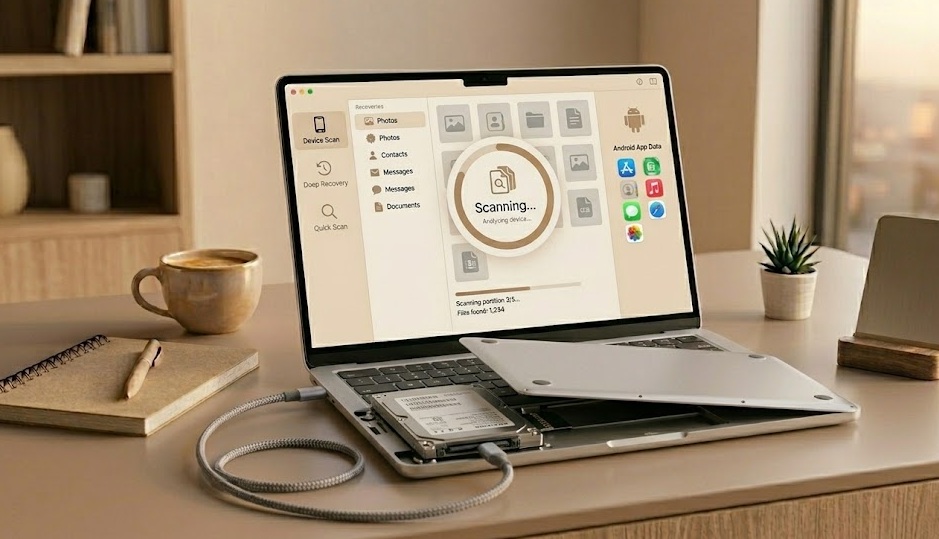
A laptop that won't turn on doesn't necessarily have a dead hard drive. The two are separate components. Laptop failures are most often caused by motherboard issues, dead batteries, or failed display — while the storage drive remains completely intact.
According to StorageReview's analysis of laptop failure patterns, over 70% of 'dead laptop' cases submitted to data recovery services involved fully intact storage drives — the failure was in the motherboard, display, or battery, not the data storage itself. [source] A $15 USB enclosure turns a dead laptop's drive into a readable external drive.
What Not to Do
Don't save new files to the laptop after losing data — every new save risks overwriting what you're trying to recover.
Don't install Recuva to the same drive you're recovering from — install to USB or external.
Don't format the drive to 'fix' the laptop before recovering data.
Don't pay for a recovery service before trying Previous Versions and Recuva — free tools solve the majority of cases.
When to Get Professional Help
- Laptop drive makes clicking or grinding noises
- Drive not detected in Disk Management or Disk Utility
- Drive was physically damaged (dropped, water, fire)
- SSD failure with no backup — professional chip-level recovery needed
Decision Flow
If You Only Do One Thing
Right-click the folder where the file used to live and select 'Restore previous versions' (Windows). This free, built-in feature silently captures snapshots in the background on most Windows laptops — and it works even if you never set up File History deliberately.
People Also Ask
Often yes. Remove the hard drive or SSD and connect it to another computer via a USB enclosure. If the storage is physically intact, you can scan it with Recuva or PhotoRec on the second machine.
Recuva (Windows) and PhotoRec (all platforms) are the most reliable free options. For Mac laptops, Time Machine and Disk Drill's free scan are the first stops.
Remove the storage drive, place it in a USB enclosure ($10–$20), and connect to a working laptop. Then run Recuva or PhotoRec on the connected drive. This bypasses the broken laptop entirely.