You ran the test. Four numbers appeared. Now what? Here's what download, upload, ping, and jitter each mean — and how to know if yours are any good.
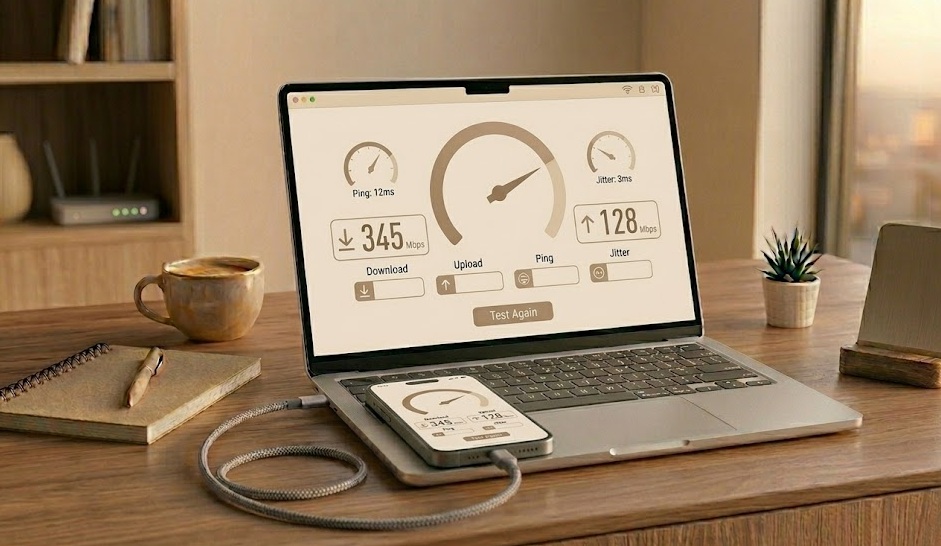
A Wi-Fi speed test measures four things: download speed (how fast data arrives at your device), upload speed (how fast you send data out), ping (how quickly the connection responds), and jitter (how consistent that response is). For most households, 100 Mbps download, 20 Mbps upload, ping under 50ms, and jitter under 10ms is a healthy result. If yours look nothing like that, this article explains why — and what to do about it.
You probably ran the test expecting one number — "my internet speed." Instead you got four. Maybe five if jitter showed up. Most people squint at the screen, decide the download number looks okay, and close the tab.
That's a fair reaction. But those other numbers matter more than they seem, depending on what you actually do online. Let's take them one at a time.
Measured in Mbps. This is what affects streaming quality, page load times, and how fast files download. Most people need this to be the highest number on the page.
Often ignored — until you're on a video call that looks terrible to the other person. Upload drives video conferencing, file sharing, and cloud backups.
Measured in milliseconds. This is the round-trip time from your device to a server and back. Lower is always better. High ping makes gaming, calls, and anything interactive feel laggy.
Jitter measures how much your ping fluctuates. A stable 40ms ping is fine. A ping that bounces between 10ms and 200ms is jitter — and it causes choppy audio and stutter even when speeds look fine.
Mbps means megabits per second, not megabytes. To convert to the MB/s number you see in file transfers, divide by 8. So a 100 Mbps connection downloads at roughly 12.5 MB/s. Why are they different? Because bits and bytes are different units — and internet speeds have always been marketed in the larger-sounding one.
Speed tests route your data to a nearby server and measure how long it takes. The closer the server, the lower your ping reading. That's not cheating — it's measuring your local connection. But it does mean a speed test to a server in your city and one in a distant country will give very different ping results. The download and upload numbers usually stay similar regardless of server location.
Different speed test tools can give different results — even on the same connection. Ookla (Speedtest.net) is known to select optimized paths that can read higher than real-world performance. Fast.com (Netflix) and Cloudflare Speed Test tend to give more typical results. Running 2–3 tests on different tools gives you a more honest average.
Here's the thing — "good" is relative. A retired couple who reads news articles and video calls their grandkids twice a week has different needs than a household of four streaming 4K, gaming, and running video meetings simultaneously. The numbers below are general benchmarks, not pass/fail grades.
| Metric | Excellent | Good | Acceptable | Poor |
|---|---|---|---|---|
| Download | 500+ Mbps | 200–499 Mbps | 100–199 Mbps | Under 100 Mbps |
| Upload | 50+ Mbps | 20–49 Mbps | 5–19 Mbps | Under 5 Mbps |
| Ping | Under 10 ms | 10–40 ms | 40–100 ms | Over 100 ms |
| Jitter | Under 5 ms | 5–10 ms | 10–30 ms | Over 30 ms |
Rather than chasing a number, think about what you use your internet for. The required speeds are lower than most people expect.
| Activity | Min Download | Min Upload | Ping Matters? |
|---|---|---|---|
| Browsing / email | 5 Mbps | 1 Mbps | Not much |
| HD streaming (Netflix, YouTube) | 15–25 Mbps | — | Not much |
| 4K streaming | 25–50 Mbps | — | Not much |
| Video call (Zoom, Teams) | 3–5 Mbps | 3–5 Mbps | Yes — under 80ms |
| Online gaming | 25–50 Mbps | 5 Mbps | Critical — under 30ms |
| Cloud backup / large uploads | — | 20+ Mbps | No |
| Smart home (10+ devices) | 100 Mbps+ | 10 Mbps | Low priority |
Notice that gaming doesn't need huge download speeds — it needs low ping. A 50 Mbps connection with 12ms ping beats a 500 Mbps connection with 90ms ping for online gaming every time. Speed and latency are different problems with different solutions.
Your video calls look bad to the other person mostly because of your upload speed — not download. If someone tells you your camera looks pixelated or frozen, run a speed test and check the upload number specifically. That's almost always the culprit.
You're paying for 500 Mbps. The speed test says 94 Mbps. This is — frustratingly — completely normal, and it's usually not your ISP cheating you. It's physics and configuration.
A speed test on Wi-Fi measures two things at once: your internet connection and your Wi-Fi. If you're far from the router, or walls are in the way, or your laptop has an older Wi-Fi adapter, the wireless leg of the journey becomes the bottleneck. Your internet might be fine. Your Wi-Fi isn't.
Test on a wired Ethernet cable to isolate the two. If your wired result jumps significantly, the problem is Wi-Fi, not your internet plan.
Before running a test: close other browser tabs, pause cloud sync, and let background updates finish. Any active download or sync during the test will steal from your result. It's not a trick — just isolation.
An older laptop might have a Wi-Fi 4 (802.11n) adapter that tops out at 150 Mbps regardless of your plan speed. Your phone on the same network might get 350 Mbps because it has a newer Wi-Fi 6 chip. This is why running the test on multiple devices is useful — the result tells you as much about the device as it does about the internet.
Don't call your ISP angry about slow speeds until you've tested on a wired connection. "Ethernet speed" and "Wi-Fi speed" are different conversations, and mixing them up is the fastest way to spend 45 minutes on hold being told to restart your router.
Internet speeds slow down during peak hours — typically 7–10 PM when everyone in a neighborhood is streaming simultaneously. If your speeds are consistently fine in the morning and poor in the evenings, that's a capacity issue at the ISP level, not anything you can fix at home.
Enter your speed test numbers and we'll tell you how they stack up.
Select your download speed and main use case