The short version: it's almost certainly not broken. Most USB port failures are software. Here's how to know which kind you have — and fix it before spending a penny.
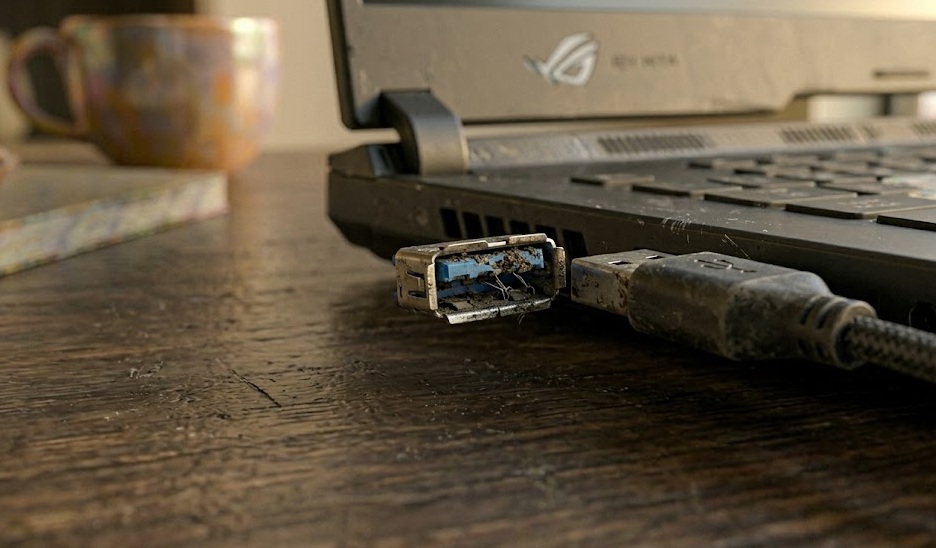
You sit down to transfer some files. Plug the drive in. Nothing. No sound, no pop-up, no little flash of the drive light. You wiggle the cable — still nothing. You plug it in again, harder this time, as if the port needs to be convinced. Still nothing.
So you try a different device. Mouse. Keyboard. Phone charger. Nothing in that port. Meanwhile, the port next to it works perfectly. At this point most people conclude: the port is broken. They're usually wrong.
The port is almost certainly alive. What's happened is far more boring, and far more fixable.
Most USB port failures are caused by Windows USB Selective Suspend — a power-saving feature that cuts power to ports it thinks are idle. Disabling it takes 90 seconds and fixes the majority of cases. The second most common cause is a corrupted USB driver. Physical damage comes third, and it's actually less common than people assume.
Before doing anything, find your symptom in this table. It narrows the fix before you touch a single setting.
| Symptom | Likely Cause | Difficulty |
|---|---|---|
| One port dead, others fine | That port's driver corrupted, or physical damage to connector | Medium |
| All ports dead at once | USB Selective Suspend, or USB controller driver crashed | Easy |
| Port worked yesterday, dead today (no changes made) | Windows Update replaced USB driver, or power event corrupted state | Easy |
| Device detected but shows error in Device Manager | Driver conflict or outdated USB controller driver | Easy |
| Device charges but doesn't appear as connected | Data pins damaged, wrong USB standard mismatch, or hub without power | Medium |
| Works sometimes, disconnects randomly | Worn port connector, damaged cable, or USB Selective Suspend cycling | Medium |
| Port feels loose or wobbly | Physical connector damage — solder joint cracked | Hard |
| Nothing detected in BIOS either | Physical port failure or USB controller failure at hardware level | Hard |
Your USB port is connected to a controller chip on the motherboard — think of it as the traffic manager for everything USB. That chip talks to Windows through a driver. The driver decides whether the port is active, how much power it gets, and which device is plugged in.
Here's where it gets interesting. Windows has a feature called USB Selective Suspend that instructs the controller to cut power to individual ports it considers idle. The idea was to save battery on laptops. The problem is it sometimes miscounts — declares a port "idle" while something is actively plugged into it, and just... turns it off.
From the outside, this looks identical to a physically dead port. Same symptoms. Completely different cause. One fix is a 90-second settings change. The other is a soldering iron.
When a driver update goes wrong — through a Windows Update, a driver conflict, or a corrupted install — the controller can lose its instructions entirely. The hardware is fine. It's just waiting for software that never comes. Again: looks broken, isn't broken.
A USB port that appears in Windows Device Manager — even with an error — is not physically dead. The hardware is alive. The software layer has a problem. If the port doesn't appear in Device Manager at all, and doesn't appear in BIOS, then you're probably looking at real hardware damage.
Try all three of these before opening Device Manager. They fix the majority of USB port failures.
Not sleep. Not hibernate. A full shutdown and cold start. USB driver hangs, stuck power states, and controller errors all clear on a real reboot. If you haven't tried this yet: it's embarrassing how often it works.
Control Panel → Power Options → Change plan settings → Change advanced power settings → USB settings → USB selective suspend setting → Disabled (for both On battery and Plugged in). Replug your device after changing. This single setting fixes most "all ports dead" situations.
Sometimes a device that drew too much current trips Windows's USB overcurrent protection and shuts down the port. A full power cycle — including unplugging the laptop's power cable — clears the protection state and brings the port back without any software changes.
Shut down. Hold Shift + Control + Option + Power for 10 seconds. Release all keys. Power on normally. The SMC controls USB power management on Mac — resetting it clears stuck states that disable ports.
If the port is still dead after the quick fixes, the problem is in the driver layer. These take 5–15 minutes and require Device Manager.
Device Manager → expand "Universal Serial Bus controllers" → right-click each "USB Root Hub" → Uninstall device (do not delete driver files). Restart. Windows reinstalls them fresh. This clears corrupted driver states without losing any settings.
Device Manager → USB Host Controller → Properties → Driver tab. If "Roll Back Driver" is available (meaning a recent update replaced it), use it. If not, visit your laptop manufacturer's support site and download their USB or chipset driver directly — it's often more stable than the Windows Update version.
Open Command Prompt as Admin and run: msdt.exe -id DeviceDiagnostic. This runs a more thorough hardware scan than the Settings menu version and can detect USB power delivery misconfigurations that the GUI doesn't surface.
Restart → enter BIOS (usually F2, Del, or F10 at startup) → look for USB settings. Confirm USB is enabled globally and no individual ports are disabled. A BIOS update or factory reset can change these settings without warning.
Don't try to straighten bent pins inside the port with a toothpick, paper clip, or tweezers. You'll push them further out of position or short the circuit. Bent pins are a repair shop job.
Don't use compressed air directly into a USB port while the laptop is on. The static discharge from compressed air can spike the controller chip. Power down first if you're cleaning debris out of a port.
Don't install "USB repair" or "driver fix" software from unknown sites. These are almost always adware or worse, and the actual fix is available free in Device Manager. No third-party tool needed.
Don't assume the port is broken because a specific device doesn't work in it. Test with at least three different devices and two different cables before drawing that conclusion. Cables fail far more often than ports do — which is a weird thing to say, but it's true.
Don't keep plugging in the same device if the port started smelling like burning plastic or sparked. That's a sign of a short circuit. Stop using that port, unplug the laptop's power, and take it to a repair shop.
Stop troubleshooting software and consider repair if any of these are true:
Control Panel → Power Options → Change plan settings → Change advanced power settings → USB settings → USB selective suspend setting → Disabled. Set it for both "On battery" and "Plugged in." Restart. Plug the device back in. This one change resolves more USB port problems than everything else on this page combined — including issues people have been living with for months, convinced their port was physically broken.
Two questions. One clear direction.
Tell us what's happening and we'll point you to the most likely cause.